


- WordPress
- Troubleshooting
- Website Enquiries
Contact Form 7 Not Sending Emails? A Practical WordPress Checklist


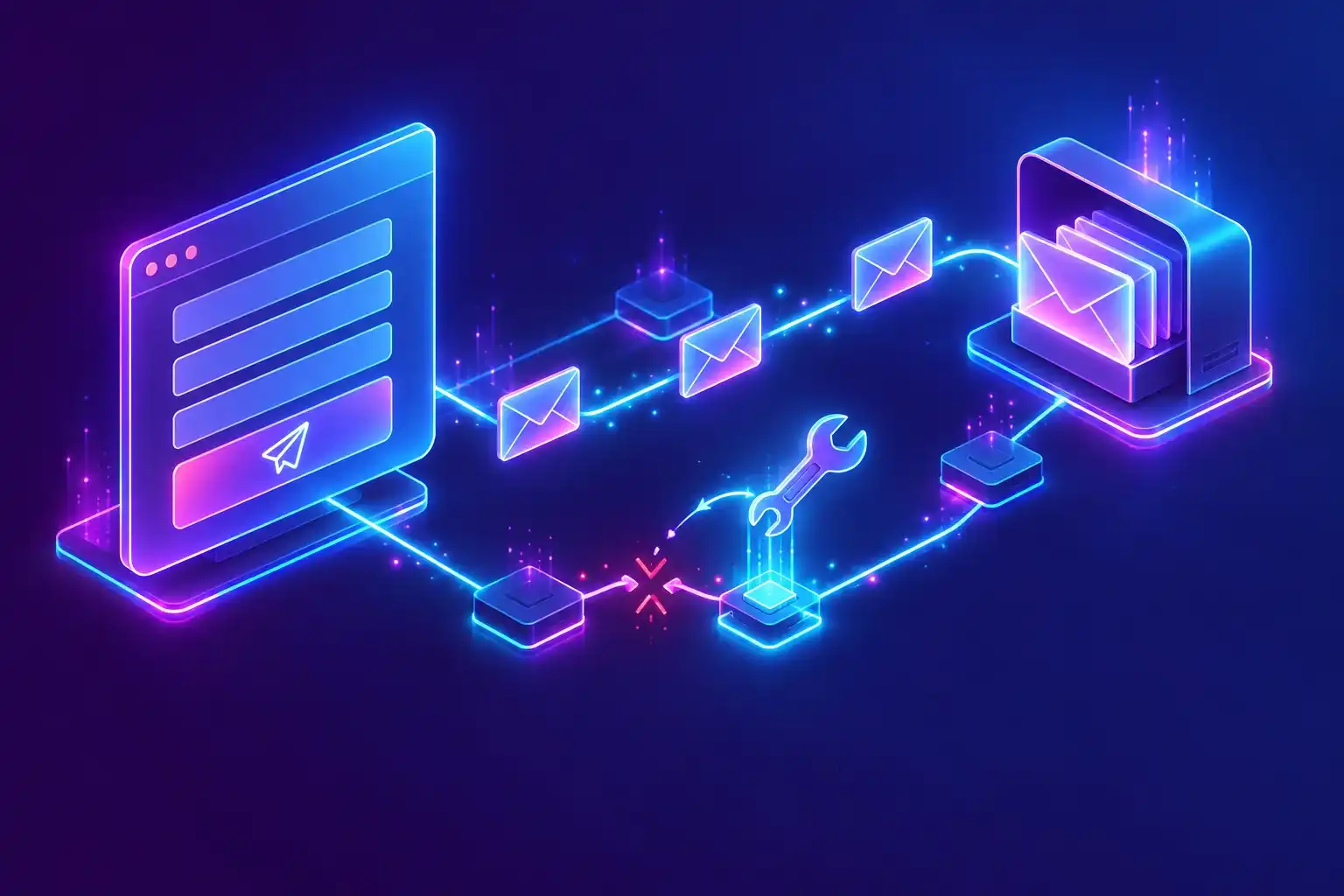
If Contact Form 7 is not sending emails, first establish where the enquiry stops. The visitor may be unable to submit, the form may reject the message, WordPress may fail to send it, or the receiving mailbox may filter it. Each needs a different fix.
A success message is not proof of inbox delivery. WordPress explains that a successful wp_mail() result means the sending method processed the request without an error; it does not confirm receipt. See the WordPress mail reference.
For an Essex business relying on website enquiries, start with one controlled test. Use your own contact details, an identifiable subject and a short message. Record the page URL, time and exact response, then follow this checklist.
1. Identify the symptom before changing settings
Check the response text and field errors. Default colours are useful clues, although your theme may change them:
- Required-field warnings: correct the highlighted fields and check that valid information is accepted.
- An orange error border: Contact Form 7 has treated the submission as suspected spam.
- A red error border: the mail-sending step has failed.
- A success response but no email: investigate mail transport, filtering and the destination mailbox.
- A spinner that never stops: investigate the submission request and browser errors before assuming an email fault.
The plugin's official error-message guide distinguishes spam rejection from a sending failure. Save the exact response when reporting a problem; “the form is broken” gives a developer much less to work with.
2. Check the form's Mail tab
In WordPress, open Contact → Contact Forms, select the affected form and review its Mail tab. Confirm the To address is your intended inbox and that there are no typing mistakes or obsolete recipients.
Use an authorised address on your website's domain in From. The visitor's email belongs in Reply-To, so you can reply to them without making the notification appear to originate from their domain. Contact Form 7 documents this in its mail setup recommendations.
Check that every mail-tag matches a field that actually exists. A renamed email field can leave an old tag in the template. Review configuration warnings and any optional fields used in headers. If you use Mail (2) for a confirmation email, check that template separately; it is a second message with its own settings. See setting up mail.
3. Trace delivery beyond WordPress
Search junk, quarantine, mailbox rules and shared-inbox folders. Test another address you control to see whether the failure affects one recipient or every destination. Avoid repeatedly testing against customers' inboxes.
If your website already uses an email delivery service, ask the person managing it to check the test's timestamp, recipient and delivery log. Was the message accepted, deferred or rejected? A recorded reason is more useful than installing another mail plugin and hoping it helps.
Ask your hosting or email provider to confirm the supported sending method and authentication. Contact Form 7 recommends using email authentication such as SPF and DKIM; follow your provider's settings for the domain. Changing the From address alone does not configure these records. The official mail guidance explains the relationship.
Authenticated SMTP or a provider's email API may be appropriate, depending on the existing setup. Configure one deliberate route, then test the actual contact form as well as any mail plugin's test button.
4. Investigate spam rejection and browser failures
If legitimate messages are rejected as spam, review the configured spam protection and its available logs. Repeat a realistic test using valid details. Do not leave protection disabled on the public form as a permanent workaround.
For an endless spinner or an unresponsive button, test while logged out and on a phone. Note whether the problem began after a plugin update, caching change, script optimisation or security rule change. A developer can inspect the browser console and network request to identify the failing step.
Before plugin, theme or code changes, take a current backup and reproduce the issue on staging. Change one variable at a time and retest. This follows WordPress's guidance for investigating plugin and theme conflicts and avoids disrupting other customer journeys.
5. Check the CRM or integration separately
If an email arrives but the enquiry never reaches your CRM, spreadsheet or booking system, that is a separate part of the journey. Compare the submission with the receiving system's logs and check required fields, validation failures and duplicate rules.
A successful form response should not be your only evidence that an external system accepted the enquiry. Our WordPress API integration guide covers how form data connects to other services and why error handling matters.
6. Keep a recoverable record and prove the fix
Contact Form 7 does not store submissions by default. Its companion plugin Flamingo can retain them in WordPress, as explained in the official submission-storage guide. Storage must be configured before it can protect future enquiries; installing it does not recreate missing messages.
If you retain enquiries, decide who needs access and how long records are useful. Keep logs private and use test data when investigating faults.
After the repair, verify the whole journey: valid submission, staff notification, visitor confirmation if enabled, saved record and any connected system. Also submit an incomplete form to ensure validation still works. Repeat on desktop and mobile, then schedule regular checks through your WordPress maintenance and support process.
Need someone to fix the enquiry journey?
Our WordPress Fix Desk helps Essex and UK businesses investigate defined form, email and integration problems. Send the affected page URL, what happens, what should happen and any recent changes. Screenshots of the response help; passwords and access credentials do not belong in the enquiry.
Describe your Contact Form 7 issue and we will review the scope and appropriate package before work begins.